
How to Convert a PDF to Google Slides (3 Ways)


Google Slides can't open a PDF. You can still get one in three ways: add each page as a picture (fast, and it looks exactly like the PDF, but nothing can be edited), convert the PDF to a PowerPoint file and import that (words you can edit, but the layout often shifts), or rebuild it as new slides written from what the PDF says (made for presenting, everything editable). Pick by what you need to do with the slides.
Maybe a client sent a report as a PDF and you present it on Thursday. Maybe your own slides only survive as an exported PDF. Either way, here is what works, step by step, and what each way costs you.
Three ways to get a PDF into Google Slides
Way 1
Add pages as pictures
- Looks like the PDF: High
- Words you can edit: None
- Quick to do: High
- Easy to present: Low
Best for Showing a page as it is: a signed form, a chart from a report, a brochure.
Way 2
Convert, then import
- Looks like the PDF: Medium
- Words you can edit: Medium
- Quick to do: Medium
- Easy to present: Low
Best for A PDF that was exported from slides, when a few words need to change.
Way 3
Rebuild with AI
- Looks like the PDF: Low
- Words you can edit: High
- Quick to do: Medium
- Easy to present: High
Best for A report, a paper or a long document you have to present.
Way 1: Add each PDF page as a picture
This is the fastest way, and the only one that keeps every page exactly as it looks. The catch: each page becomes a flat picture, so you can't change a word or a number on it, and the words can't be searched.
Save the pages you need as pictures
On a Mac, open the PDF in Preview, go to the page and choose , then pick PNG as the format. On Windows, press Windows + Shift + S to snip each page with the Snipping Tool, or use a PDF reader that saves pages as pictures. Choose a high resolution (150 dpi or more) so the words stay sharp on a big screen.
Put each picture on its own slide
In Google Slides, add a blank slide and choose . If the PDF was made from slides (wide pages), is even better: the page fills the slide and can't be nudged by accident.
Make a tall page readable
A report page is tall and a slide is wide, so a whole page shows small. Double-click the picture to crop it to the part you will talk about, then let it fill the slide. Two slides with a crop each beat one slide nobody can read.
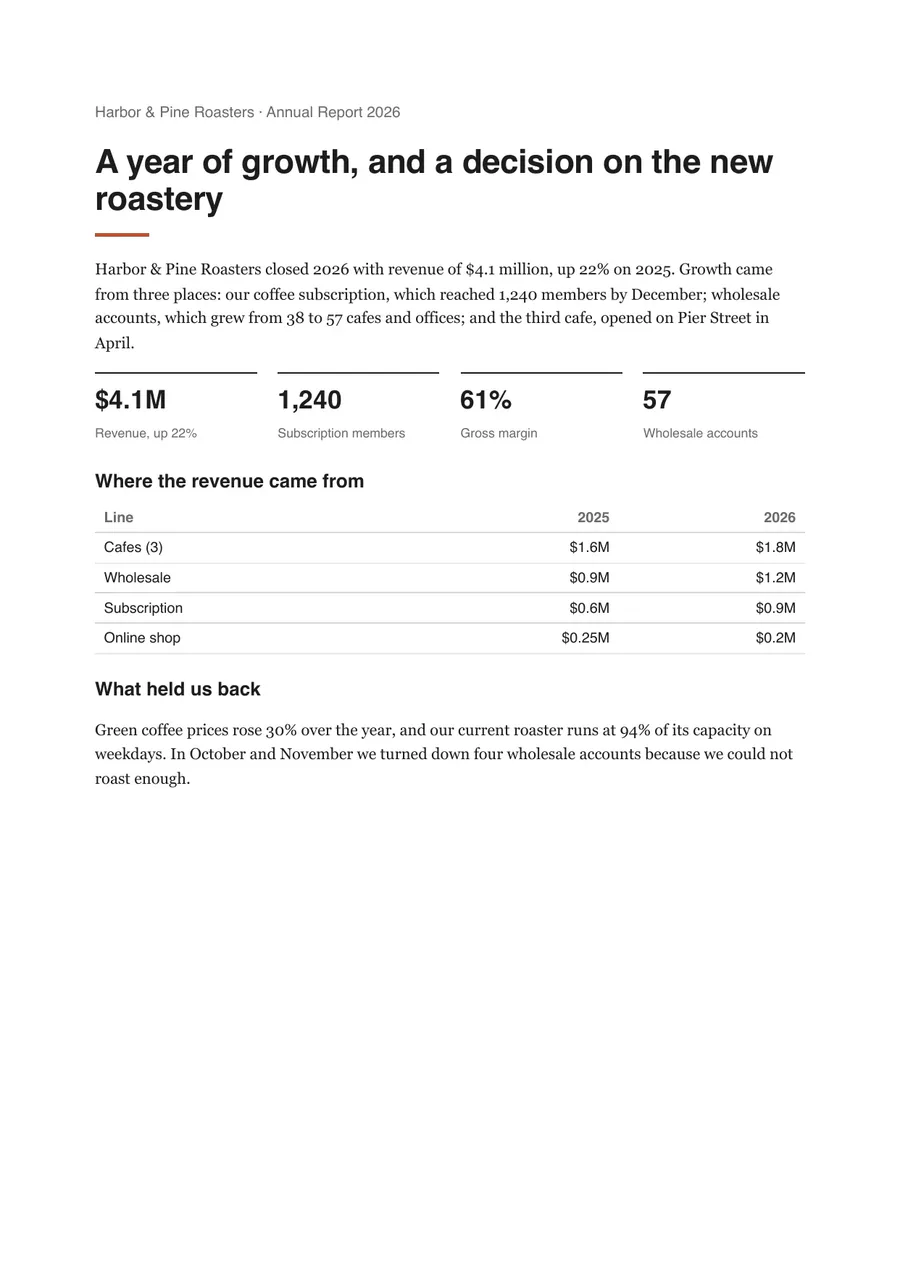
The whole page. A tall page fills the height of a wide slide and leaves its sides empty: too small to read from the back of a room.
Cropped to what matters. The figures and the table fill the slide, big enough for everyone.
The same report page, placed whole and cropped. Pictures keep the look exactly, but nothing on them can be edited.
Good to know Google Slides has no button that turns a whole PDF into slides at once. For a 40-page PDF that means 40 pictures. Add-ons in the Google Workspace Marketplace can do it in one go; check what access each asks for before you install it.
Way 2: Convert the PDF to PowerPoint, then import it
Google Slides imports PowerPoint files well, so the usual trick is to turn the PDF into a .pptx file first. You get text boxes you can edit. How good the result looks depends on the PDF: one exported from slides converts cleanly, while a report with columns, tables and footnotes comes out as a pile of small text boxes.
Convert the PDF to a PowerPoint file
Use a PDF converter: an online one, or the export of a desktop PDF editor (look for "PDF to PowerPoint" or "Export to PowerPoint"). For a scanned PDF, pick one with text recognition (OCR), or every page comes back as a picture again. Keep private documents in a desktop tool: online converters upload your file.
Import the slides into Google Slides
Open your presentation and choose . Pick the .pptx file, select the slides you want and press Import slides. For a new presentation instead, upload the file to Google Drive, open it, and choose .
The trip from PDF to Google Slides
Your PDFFixed pages, made for reading and printing.A .pptx fileText boxes PowerPoint can edit.- Lines split into separate boxes
- Tables in loose pieces
- Scans come out as pictures
Google SlidesSlides you can edit together.- Fonts it lacks are swapped
- Charts often arrive as pictures
- Some effects are dropped
What can change at each step. A PDF that was exported from slides comes through best; a report with columns and tables needs the most tidying. Check what moved
Go through every slide before you present. Look for swapped fonts, text that runs out of its box, tables broken into pieces and charts that became pictures. Fixing ten slides takes minutes; fixing fifty is the moment to try way 3.
Way 3: Rebuild it as new slides with AI
A PDF report is written to be read. Slides are made to be shown: one idea at a time, numbers as charts, few words. If you are presenting what the PDF says, rather than showing its pages, the quickest good result is a new presentation written from it.
That is what create from files in Infograpia does. To be clear about what it is: it is not a converter, and it doesn't copy your pages one by one. It reads the PDF and writes a new presentation from what it says, keeping your facts, names and figures.


Attach the PDF and say what it is for
In Infograpia, start a new presentation, press the plus in the box and pick your PDF, or drag it onto the box. Then write one line about who it is for and what it should do, like "A ten-minute update for the board from this report."
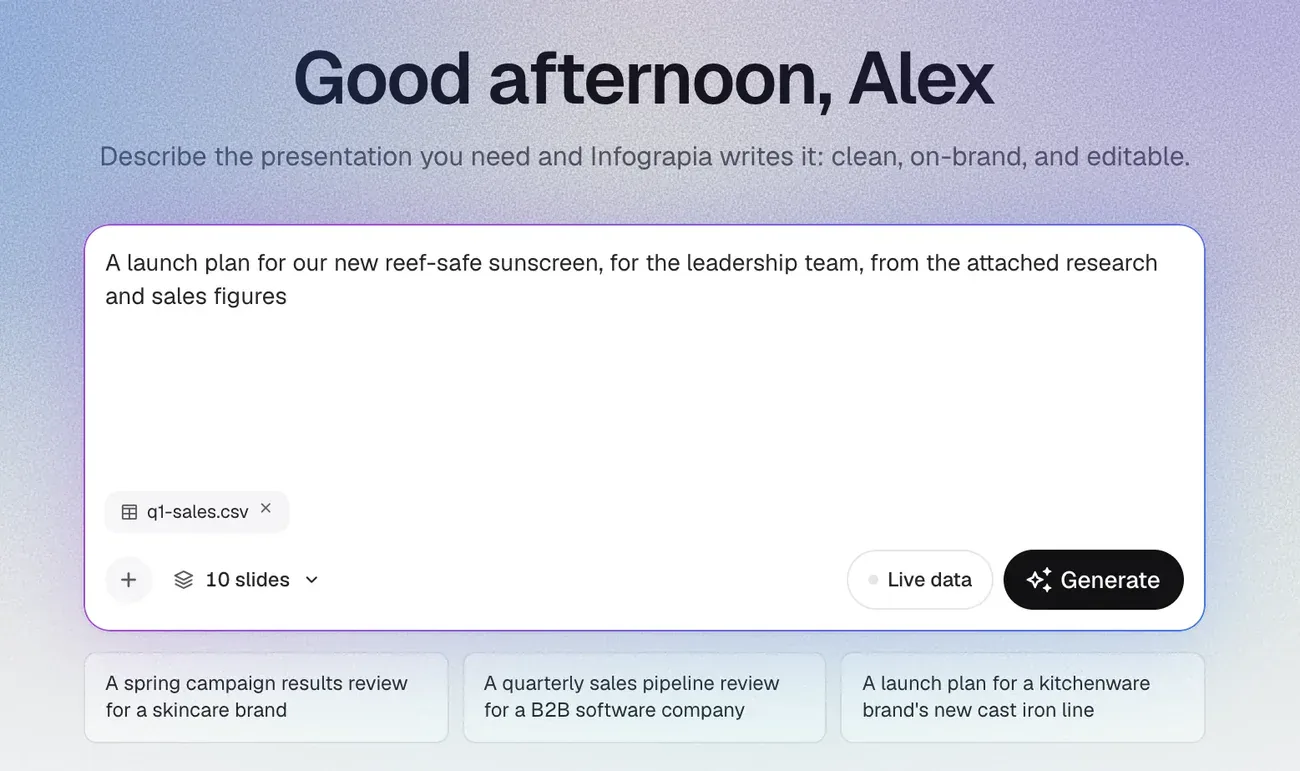
Where a presentation starts. Here a CSV file is attached; a PDF attaches the same way, with the plus or by dragging it in. Pick a look and let it write
Choose a look and how many slides you want. The presentation is written from your file: one idea a slide, the figures and names as the PDF gives them, a table as a chart drawn from its own numbers. Read every figure against the PDF before you present; it is your name on the slides.
Take it into Google Slides, or present it as it is
On a paid plan, choose and import the file into Google Slides with , as in way 2. Or skip the trip: present from your browser, or turn on Share to web and send one link, on any plan.
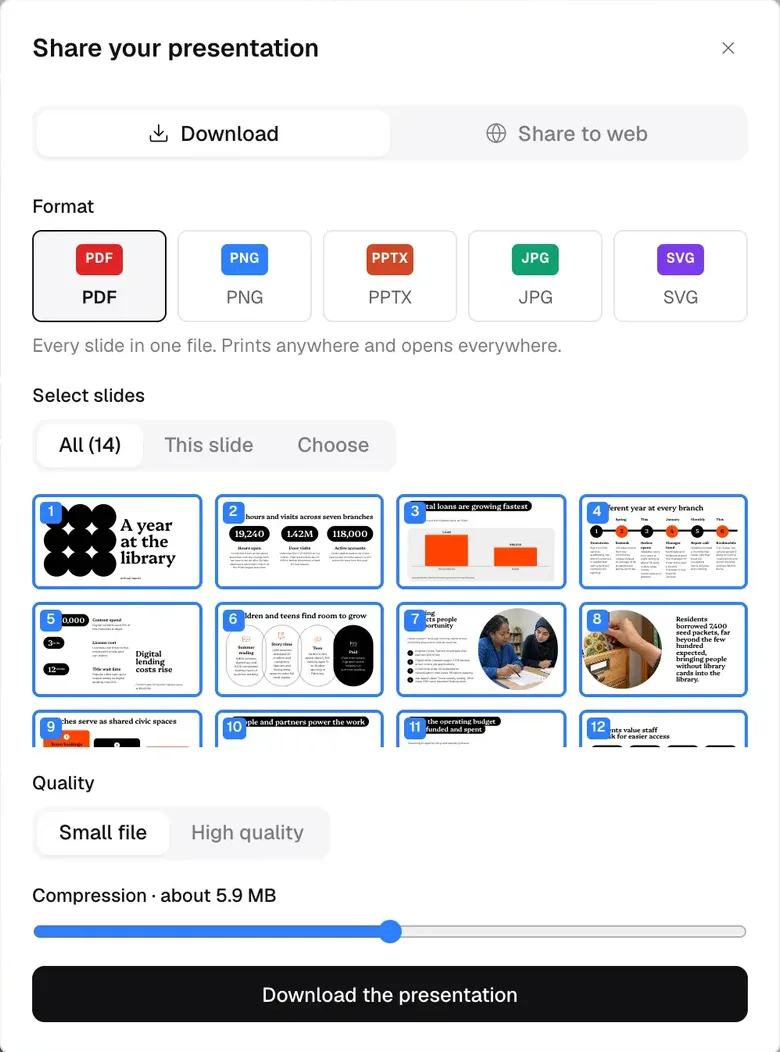
The download window. The PowerPoint file has real text boxes, shapes and charts.


Long or scanned PDF? A very long PDF is read up to a limit, which is higher on the paid plans, and the chat tells you if anything was cut; for a long report, attach the chapters you will talk about. A scanned PDF holds pictures of words, not words: run text recognition (OCR) on it first.
When you only need people to read the PDF
Sometimes the PDF doesn't belong on a slide at all: a contract, a price list, a full report people should read afterwards. Then link to it. Put the PDF in Google Drive, set its sharing to "Anyone with the link", and add the link to a word or a picture on your slide with Ctrl + K (Cmd + K on a Mac). Our guide to turning a PDF into a link shows every way to do it.
Questions people ask
Can Google Slides open a PDF?
No. Google Slides imports Google Slides and PowerPoint files, not PDFs. Add the PDF's pages as pictures, convert it to a PowerPoint file first, or rebuild it as new slides.
How do I convert a PDF into editable Google Slides?
Convert the PDF to a PowerPoint file with a PDF converter, then choose File, Import slides in Google Slides. For a scanned PDF, use a converter with text recognition (OCR). Or rebuild it: Infograpia writes new, fully editable slides from what the PDF says.
Why does my PDF come into Google Slides as pictures only?
Either the converter saved each page as a picture, or the PDF is a scan with no real text in it. Try a converter that exports text boxes, with text recognition (OCR) turned on for scans.
Can I add a PDF to Google Slides on my phone?
Only as pictures. Take a screenshot of the page, then in the Google Slides app tap the plus and choose Image. Importing a whole file is easier on a computer.
Is there a free way to convert a PDF to Google Slides?
Yes. Pictures of each page and the import in Google Slides cost nothing, and many converters have a free tier with limits. You can start in Infograpia for free; downloading the PowerPoint file needs a paid plan.
Share
Related Posts

How to Convert a PDF to PowerPoint: Convert It or Rebuild It
PowerPoint can't open a PDF. Convert it, insert its pages as pictures, embed it, or rebuild it as new slides: how to choose, and every step of each way.

How to Turn a PDF Into a Link Anyone Can Open
Upload the PDF somewhere that gives it its own address, then share that address: a cloud drive, your website or a flipbook. Every step, and how to choose.

How to Customize Presentation Templates in Google Slides
Presentation templates save hours of design work, but using them effectively requires more than just swapping out placeholder text. Customizing a template to...