
How to Convert a PDF to PowerPoint: Convert It or Rebuild It


PowerPoint can't open a PDF. To get one in, you can convert it with a PDF converter (editable text, but the layout often shifts), insert its pages as pictures (an exact look, nothing to edit), insert the file as an object (Windows only; it opens the PDF on click), or rebuild it as new slides with AI (made for presenting, everything editable). Need to change the words? Convert or rebuild. Only need to show the pages? Use pictures.
Most people who search for this have a PDF they didn't make, a deadline, and a room to stand in front of. The right way depends less on the tool than on one question: are you showing the pages, or presenting what they say?
Convert it or rebuild it? Decide in 30 seconds
Which way fits your PDF
- Do you need to change any words or numbers?NoYesInsert the pages as picturesAn exact look, done in minutes.
- Will you present it as a talk, rather than show its pages as they are?NoYesConvert it, then tidy itEditable text in the PDF's own layout.
- Rebuild it as slidesA new presentation written from what the PDF says.
The four ways compared
Way 1
Convert with a converter
- Looks like the PDF: Medium
- Words you can edit: Medium
- Quick to do: Medium
- Easy to present: Low
Best for A PDF exported from slides, when some words must change.
Way 2
Insert pages as pictures
- Looks like the PDF: High
- Words you can edit: None
- Quick to do: High
- Easy to present: Low
Best for Showing pages as they are: a chart, a form, a brochure.
Way 3
Insert as an object
- Looks like the PDF: Low
- Words you can edit: None
- Quick to do: High
- Easy to present: None
Best for Carrying the whole PDF inside a presentation you send.
Way 4
Rebuild with AI
- Looks like the PDF: Low
- Words you can edit: High
- Quick to do: Medium
- Easy to present: High
Best for A report, a proposal or a paper you have to present.
Way 1: Convert the PDF with a converter
A converter turns each page into a slide of text boxes and pictures. It works best on a PDF that was made from slides in the first place. On a report with columns, footnotes and tables, it gets every word across and very little of the order: you get an editable page, not a slide.
Choose a converter
There are two kinds: online converters, which work in your browser, and the export in a desktop PDF editor (often under File, Export To, PowerPoint). Online is quick for an occasional file. For anything confidential, use a desktop tool: an online converter uploads your file to its servers.
Convert to a .pptx file
Open or upload the PDF and choose PowerPoint (.pptx) as the result. If the PDF is a scan, turn on text recognition (OCR), which may be called "recognize text"; without it, every page comes back as a picture.
Open the file and tidy it
The converter guessed where every line goes, so expect to tidy. Join text boxes that were split mid-sentence, put back fonts it swapped, rebuild tables that arrived as loose lines and redraw charts that came in as pictures. lists every object on the slide, which makes stray boxes easy to find.
The PDF page. A title, a paragraph, four figures and a table, set as one page.
After a converter. Every line its own text box, the table loose lines. It is all editable, and all of it needs tidying.
What a converter makes of a report page: everything editable, every line its own box. A PDF exported from slides converts far more cleanly.
Way 2: Insert the pages as pictures
When nothing needs to change, a picture of the page is the fastest and most faithful way. It also keeps your fonts and layout exactly, on any computer. You give up editing and search: to PowerPoint, the page is a photo.
Save the pages as pictures
On a Mac, open the PDF in Preview and choose , then PNG. On Windows, use a PDF reader that saves pages as pictures, or snip each page with Windows + Shift + S. Choose 150 dpi or more so small words stay sharp.
Insert them into PowerPoint
Choose on Windows, or on a Mac. For many pages on Windows, puts every picture on its own slide in one go; set the picture layout to Fit to slide.
Crop each page to what you will talk about
A report page is tall and a slide is wide, so a whole page shows small. Select the picture, choose Crop, and keep the part you are presenting. Use two slides for a busy page.
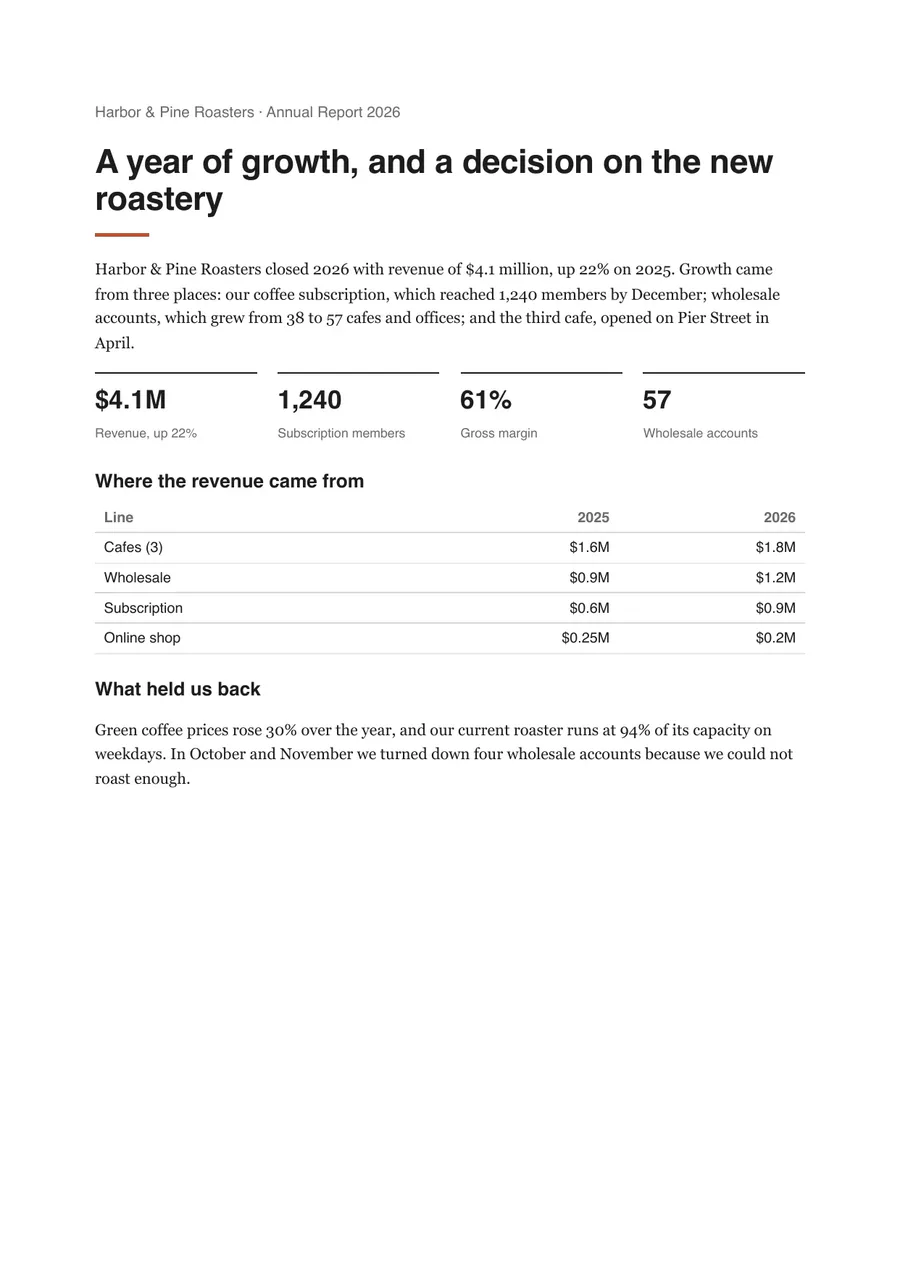
The whole page. A tall page fills the height of a wide slide and leaves its sides empty: too small to read from the back of a room.
Cropped to what matters. The figures and the table fill the slide, big enough for everyone.
The same page, whole and cropped. The look is exact, but no word on a picture can be changed.
Way 3: Insert the PDF as an object
This puts the whole PDF inside your PowerPoint file. The slide shows its first page or an icon, and a click opens the document. It is a way to hand over a document with your presentation, not to present it. It works best in PowerPoint for Windows.
Insert the file
In PowerPoint for Windows, choose , press Browse, pick the PDF and press OK. Tick Display as icon if you want an icon on the slide instead of the first page.
Make it open during the show
Select the object and choose , then Object action: Open. In the slide show, a click opens the whole PDF in your PDF reader.
Good to know The PDF travels inside the .pptx, so the file grows by its size. If people only need to read the PDF, a link is lighter: see how to turn a PDF into a link.
Way 4: Rebuild it as slides with AI
A report is written to be read at a desk: long paragraphs, tables, footnotes. A presentation is the same story told to a room: a point per slide, numbers you can see from the back, a picture where it helps. Rebuilding by hand takes an afternoon. With create from files it takes minutes.
Be clear on what it is. It is not a converter: it doesn't copy your pages one by one or keep their layout. It reads your PDF and writes a new presentation from what it says, with your facts, names and figures kept, in a look you pick.


Attach the PDF
In Infograpia, start a new presentation: press the plus in the box and pick the PDF, or drag it onto the box. Word files, PowerPoint files and CSV files work too.
Say who it is for
One line is enough: "A 15-minute review for the leadership team from this report." The audience decides what the slides lead with and how much detail they keep.
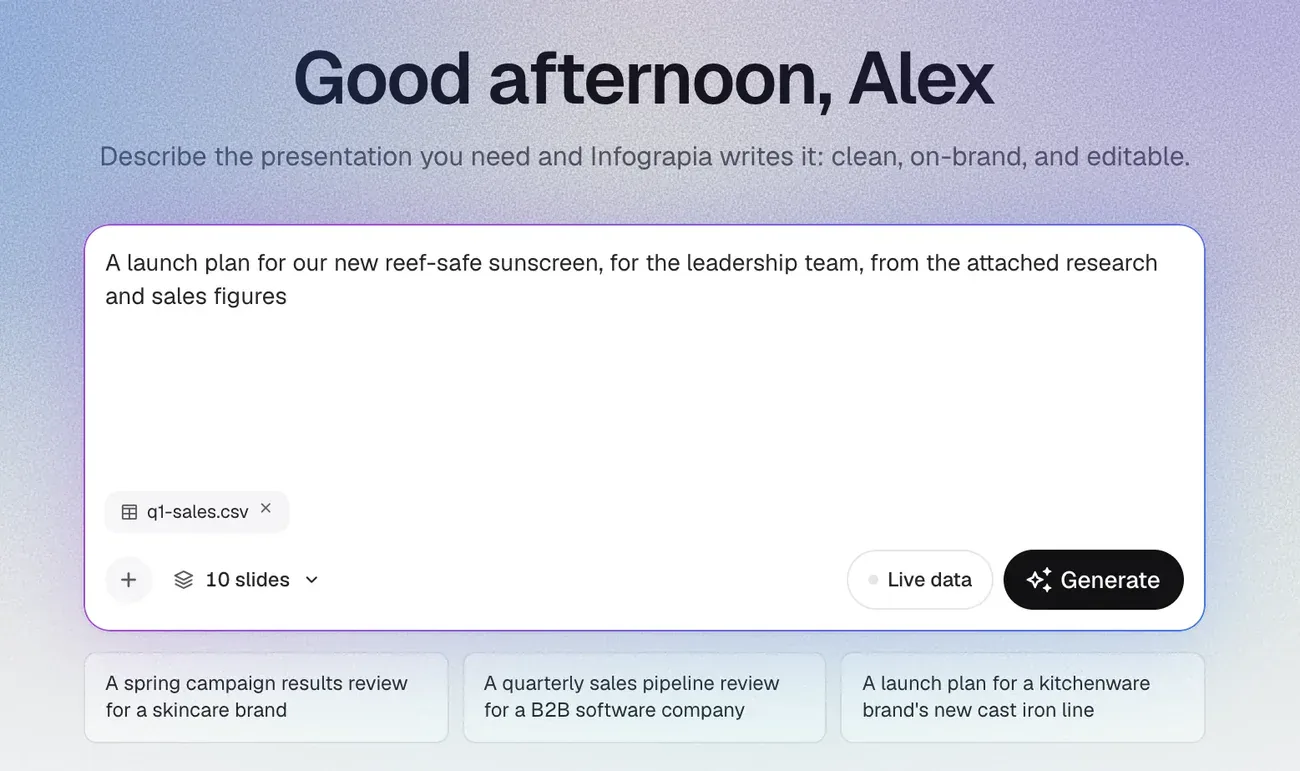
Where a presentation starts. The brief says who it is for; a CSV is attached here, and a PDF attaches the same way. Pick a look and let it write
Choose a look and the number of slides. Every slide is written from your file: one idea a slide, the figures and names as the PDF gives them, tables as charts drawn from their own numbers. Then read each figure against the PDF. You are the one presenting it.
Download the PowerPoint
On a paid plan, choose . The file has real text boxes, PowerPoint shapes and native charts with their data, and your fonts travel inside it. On any plan you can present from your browser or share a view-only link instead.
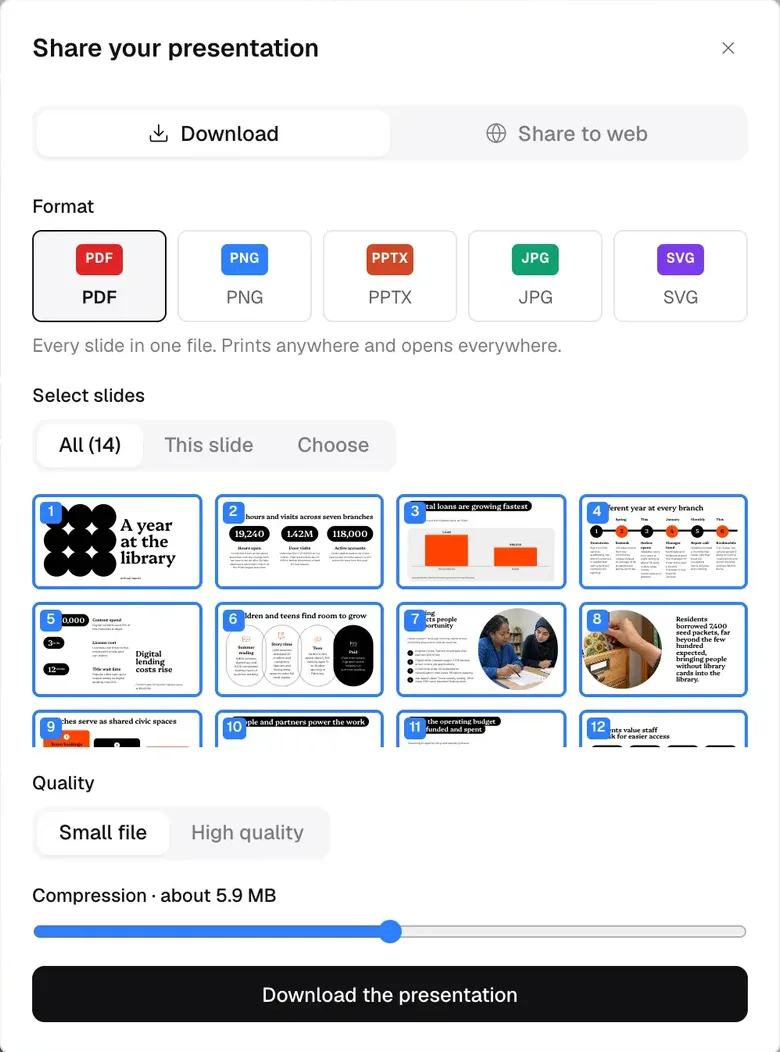
The download window: PowerPoint is one click away on a paid plan.


Long PDF? A long PDF is read up to a limit, higher on the paid plans, and the chat tells you if anything was cut. For a 100-page report, attach the chapters you will present.
Fix the problems you will meet
| Problem | Why it happens | The fix |
|---|---|---|
| Every line is its own text box | The converter rebuilt the page line by line. | Paste the lines into one text box, or rebuild the slide. |
| The fonts look wrong | The PDF used fonts your computer doesn't have. | swaps one font for another on every slide. |
| Every page came in as a picture | The PDF is a scan, or the converter exported pictures. | Convert again with text recognition (OCR) turned on. |
| A page is too small to read | A tall page sits in a wide slide. | Crop it to the part you present, or split it over two slides. |
| The file is huge | Every page is a large picture. | shrinks them for screens. |
Questions people ask
How can I convert a PDF to PowerPoint for free?
Insert the pages as pictures: it costs nothing and keeps the look. For editable text, many online converters have a free tier with limits. You can also start in Infograpia for free and have slides written from the PDF; downloading them as PowerPoint needs a paid plan.
How do I get a PDF to open in PowerPoint?
PowerPoint can't open a PDF directly. Insert its pages as pictures, insert the file as an object (Insert, Object, Create from file, on Windows), or convert it to a .pptx file first.
Can an AI chat assistant turn a PDF into a PowerPoint?
A chat assistant can summarize a PDF into an outline, and some can write a basic .pptx file, but the design is still yours to do. An AI presentation maker like Infograpia writes and designs every slide from the PDF, with charts drawn from its tables.
Will a converted PDF keep my fonts and layout?
Only partly. Fonts you don't have are swapped, and the layout is rebuilt box by box. A PDF exported from slides keeps the most; a report keeps the least.
Can I convert a scanned PDF to PowerPoint?
Yes, with text recognition (OCR). Without it, every page comes in as a picture. Many converters offer OCR; turn it on before you convert.
Share
Related Posts
How to Convert a PDF to Google Slides (3 Ways)
Google Slides can't open a PDF. Three ways in: pages as pictures, a PowerPoint file in between, or new slides written from the PDF, and how to pick.

How to Turn a PDF Into a Link Anyone Can Open
Upload the PDF somewhere that gives it its own address, then share that address: a cloud drive, your website or a flipbook. Every step, and how to choose.

How to Make a Timeline in PowerPoint (3 Ways, Plus Templates)
The fastest way is SmartArt: Insert, SmartArt, Process, Basic Timeline. Or draw one with shapes, or start from a template. Every step, with examples.