
How to Turn a PDF Into a Link Anyone Can Open

To turn a PDF into a link, upload it somewhere that gives the file its own web address, then share that address. There are three good places: a cloud drive like Google Drive (free and quick; it opens in a PDF viewer), your own website (your address and your brand), or a flipbook (pages that turn on any phone, and numbers on how it was read). Whichever you choose, set who can open the link before you send it.
An attachment gets blocked by size limits, lost in an inbox or saved and forgotten. A link opens in one tap, fits in any chat, and can be turned off later. Here are the three ways, step by step, with what each one is good and bad at.
| Cloud drive link | Your website | Flipbook link | |
|---|---|---|---|
| Free | Yes, within your storage | Yes, if you already have a site | Yes, with a small Made with Infograpia mark |
| On a phone | Opens in a PDF viewer: pinch and scroll | Opens in the phone's PDF viewer | Opens as a book: one page at a time, turned with a swipe |
| Swap the file, keep the link | Yes, by uploading a new version | Often not: a new upload gets a new address | Yes, with Replace PDF |
| See how it was read | Not for readers outside your organization | Only through your site's analytics | Visits, pages read and time on a page |
| Turn it off | Yes, set it back to Restricted | Delete the file | Yes, one switch |
Way 1: Share it from a cloud drive
If you have a Google or Microsoft account, you already have this. It is the quickest way to send a file to a few people: a report to a client, a form to a team.
Upload the PDF
In Google Drive, choose and pick the PDF. In OneDrive, choose .
Let anyone with the link open it
In Google Drive, right-click the file and choose . Under General access, change Restricted to and leave the role as Viewer. In OneDrive, choose Share, set the link to Anyone, and keep it view only.
Who can open the link
RestrictedOnly the people you add, signed in with their account.For a contract, a salary sheet, anything confidential.
Anyone with the linkWhoever has the address, with no account and no sign-in.For a brochure, a report, a menu: anything you would hand out.
The one setting that decides who can open your PDF. Pick it before you copy the link, and check it again before you send it to many people. Copy the link and send it
Press Copy link and paste it into an email, a chat or a post. Whoever opens it sees the PDF in their browser, with nothing to install.
Good to know Anyone with the link means exactly that: anyone they forward it to can open it too. For a confidential file, share it with named people instead, who sign in to open it.
Way 2: Put it on your own website
For a document that belongs to your business for good, like a menu, a price list or an annual report, your own site gives it your address and keeps visitors on your pages.
Give the file a clear name
The name becomes part of the address, so rename it first: annual-report-2026.pdf reads better in a message, and in search results, than scan_0034.pdf.
yourcompany.comYour website/files/The folder it sits inannual-report-2026.pdfThe file's own name
A file's address is your site, its folder and its name. A clear name tells people what they are about to open. Upload it to your site
Most site builders have a Media or Files area. In WordPress, choose and drop the PDF in.
Copy its address and link to it
Copy the file's address (in WordPress, Copy URL to clipboard) and link to it from a page, or send it as it is. A file on a public site can be found by search engines, so keep private documents off it.
Way 3: Share it as a flipbook link
A PDF link opens in a viewer built for printing: tiny pages you pinch and scroll. A flipbook opens as a book, a page at a time, turned like paper. For anything people page through, like a catalogue, a brochure, a report, a magazine or a lookbook, it is the better read, especially on a phone.
Upload the PDF
In Infograpia's PDF to flipbook, press Upload PDF or drop the file anywhere on the page: up to 300 pages and 100 MB. Your browser draws each page and uploads only the pictures of the pages; the PDF itself is never stored.
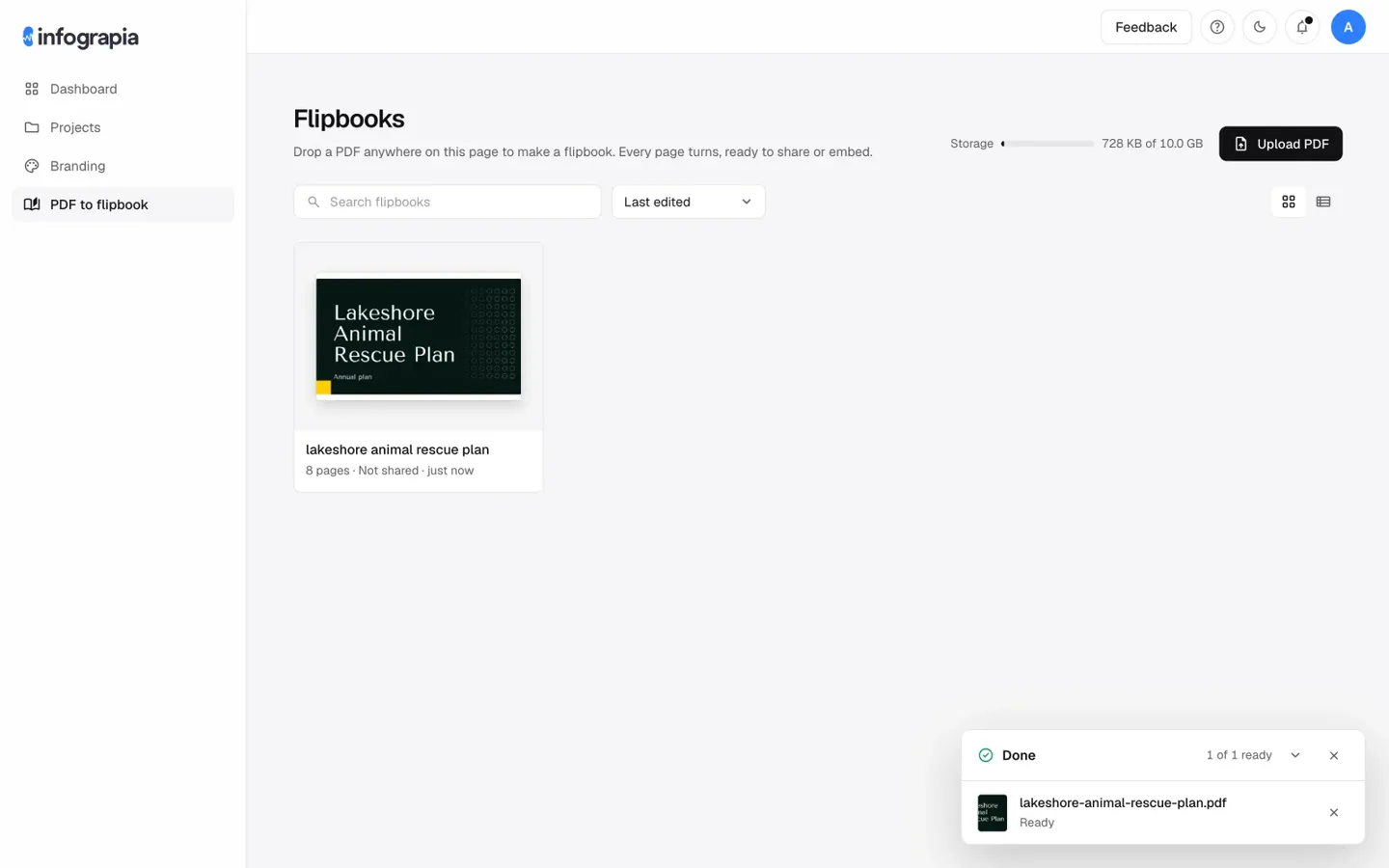
The Flipbooks page. The upload panel at the bottom shows each file until its pages are ready. Turn on the link
Open the book and switch on Anyone with the link can view, then press Copy link. The same panel holds a QR code to download, for a printed flyer or a poster, and the embed code for your website: fit the column, 960 by 540 or 640 by 360.
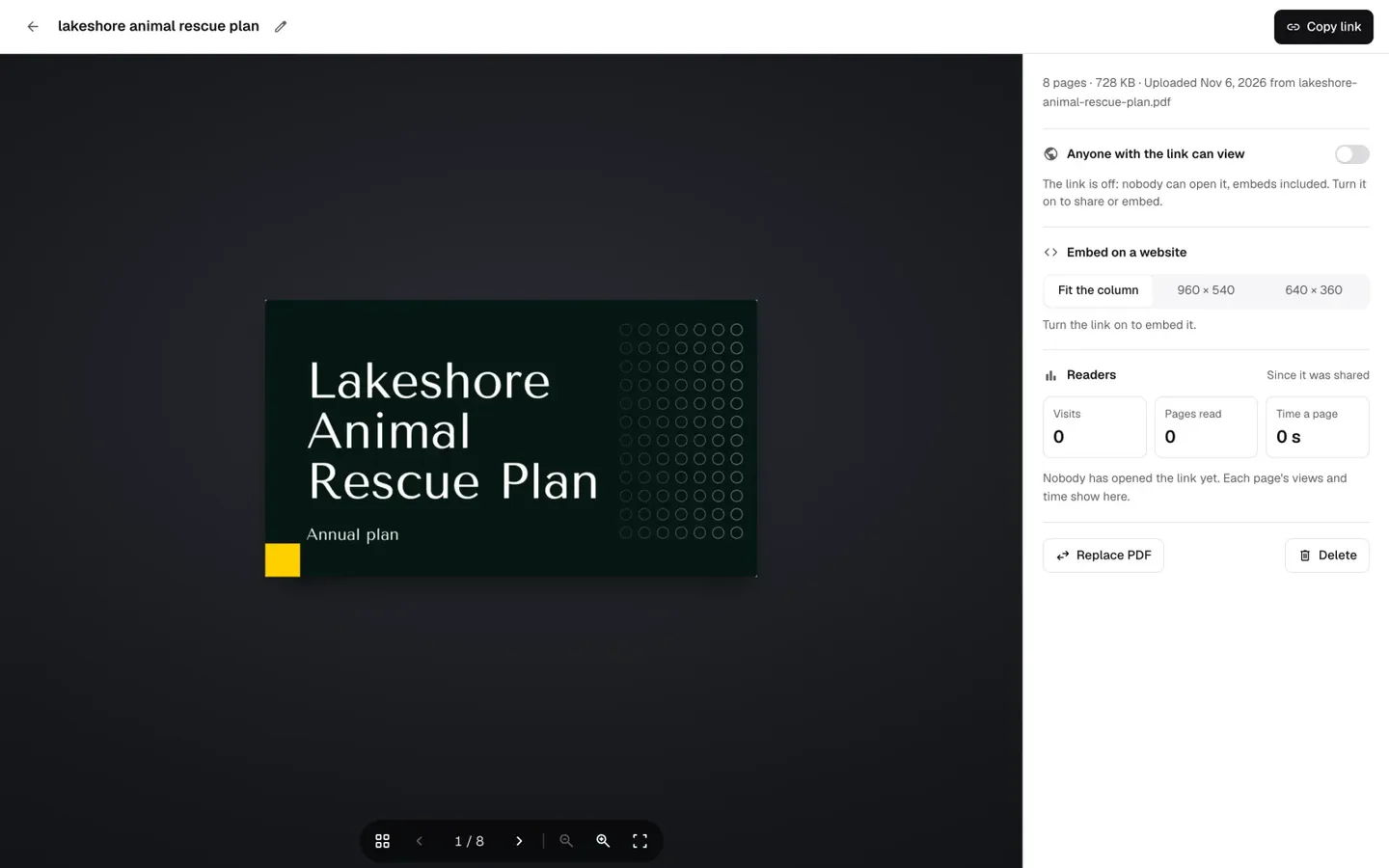
A book's page: the link's switch, the embed sizes, the readers' numbers, and Replace PDF. Send it, and see how it is read
Paste the link anywhere. On a computer the book opens two pages side by side; on a phone, one page at a time, turned with a swipe. Once the link is on, the book's page counts its visits, the pages read and the time spent on a page.
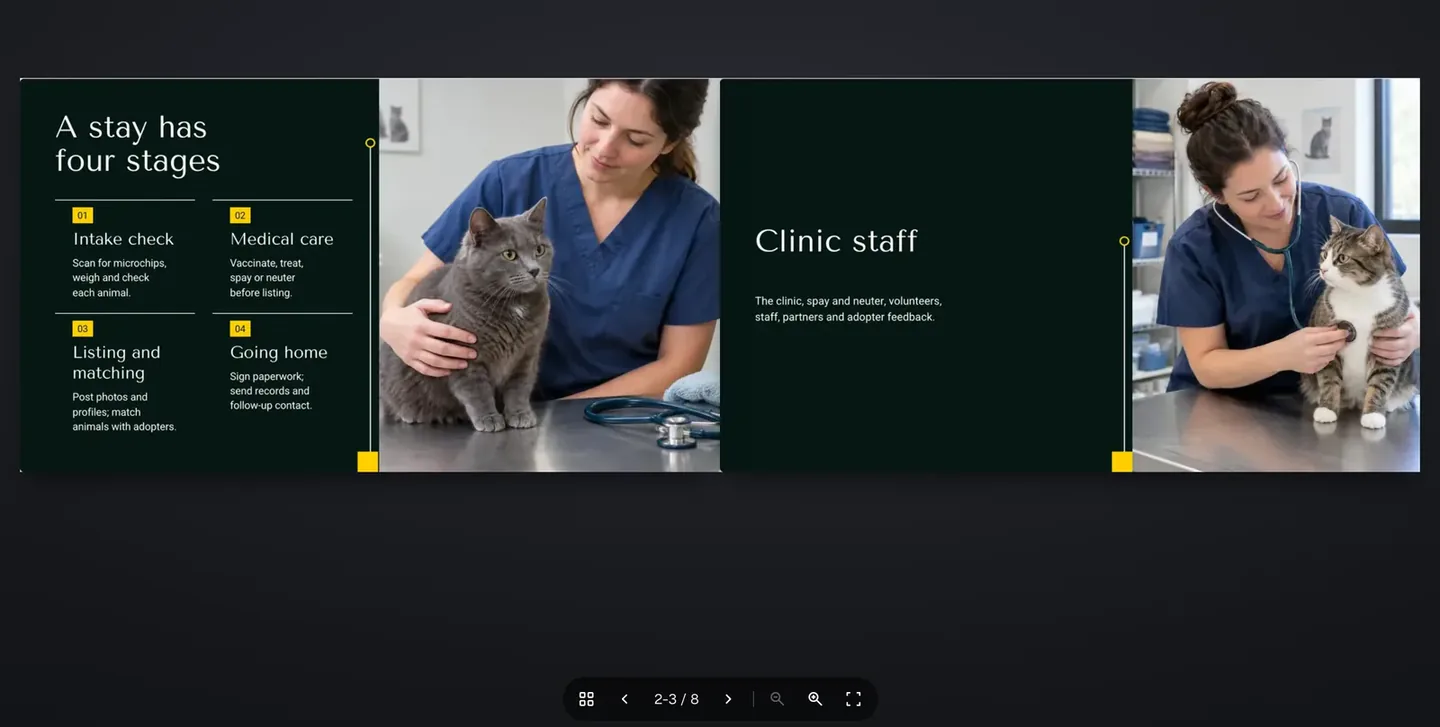
What your reader sees on a computer: two pages side by side, turned with a click or a drag.


Good to know On the free plan, books carry a small Made with Infograpia mark; the paid plans remove it. Books count toward your plan's storage. Replace PDF swaps in a new version and keeps the same link and its numbers.
Which one should you use?
Pick the place for your link
- Is it for a few people you know, like a client or your team?YesNoA cloud drive linkQuick, free, and you can share it with named people.
- Does it belong on your website for good?YesNoYour websiteYour address, your brand, found by search.
- A flipbook linkFor catalogues, reports and anything read on a phone.
Keep the link safe
- Share only what you mean to. Remove pages with private details before you upload; a link can be forwarded.
- Turn links off when the job is done. An old link to last year's prices does more harm than none.
- Keep one link. Replace the file behind it, rather than sending a new link each time it changes.
- Check it on a phone. Open the link on your own phone before you send it to a hundred people.
Presenting the PDF rather than sharing it? See how to turn a PDF into a PowerPoint or into Google Slides.
Questions people ask
How do I turn a PDF into a link for free?
Upload it to Google Drive, set General access to Anyone with the link, and press Copy link. A flipbook on Infograpia's free plan is free too, with a small Made with Infograpia mark on its pages.
Can I share a PDF as a link instead of an attachment?
Yes. Upload it to a cloud drive, your website or a flipbook maker, and send the address. The reader opens it in a browser, with nothing to download or install.
Does the link change when I update the PDF?
Not if you replace the file. In Google Drive, upload a new version of the same file; in an Infograpia flipbook, use Replace PDF. On most websites a new upload gets a new address.
Can I see who opened my PDF link?
A cloud drive link doesn't show readers outside your organization. A flipbook link shows how many visits it had, which pages were read and how long people stayed on each, as counts, not names.
How do I add a link inside a PDF?
That is a different job: add the link to the text in the app you write in, like Word, PowerPoint or Google Docs, then save as PDF. The link stays clickable in the PDF.
Share
Related Posts

How to Convert a PDF to PowerPoint: Convert It or Rebuild It
PowerPoint can't open a PDF. Convert it, insert its pages as pictures, embed it, or rebuild it as new slides: how to choose, and every step of each way.
How to Convert a PDF to Google Slides (3 Ways)
Google Slides can't open a PDF. Three ways in: pages as pictures, a PowerPoint file in between, or new slides written from the PDF, and how to pick.

PowerPoint vs Google Slides: Which One Should You Use?
Google Slides is better for working together and free with a Google account; PowerPoint for design, large files and offline work. A table and short answers.